


 Boardroom Chairs
 Client Chairs
 Conference Chairs
 Drafting Chairs
 Education Chairs
 Ergonomic Office Chairs
 Executive Chairs
 Home office chairs
 Meeting Room Chairs
 Mesh Chairs
 Task Chairs
 Training Chairs
 Corner Desks
 Executive Desks
 Express Desks
 Reception Desks
 Sit/Stand Desks
 All Sit/Stand Desks
 Add-on Height Adjustables
 Height Adjustable Desks
 Standing Matts
Insights

A home office can look perfectly fine and still leave you with a stiff neck, sore shoulders or an aching lower back by the end of the day. The problem is often not the amount of time spent working, but how the chair, desk, screen and other equipment are positioned around you.
An ergonomic setup is not created by buying one expensive chair. Your seat height, desk level, monitor position, keyboard placement and lighting all need to work together. When one part is wrong, your body usually compensates by leaning, reaching or holding tension for hours at a time.
The aim is not to create one rigid “perfect” posture. It is to build a workspace that supports comfortable positions, makes it easy to adjust throughout the day and suits the way you actually work.
This guide explains how to set up each essential part of an ergonomic home office, which mistakes to avoid and how to choose practical furniture for your space, working habits and budget.
5 Essentials of an Ergonomic Home Office
A comfortable and ergonomic home office is built around five core elements: your chair, desk, monitor, keyboard and mouse, and lighting. Together, they determine how well your workspace supports your body throughout the day.
Think of them as a complete system rather than individual pieces of furniture. A premium ergonomic chair won’t compensate for a monitor that’s too low, just as the perfect desk height won’t help if you’re constantly reaching for your keyboard or working with glare on your screen. Setting up each element correctly is the key to creating a workspace that’s both comfortable and practical for long-term use.
1. Choose the Right Ergonomic Chair
Your chair forms the foundation of your home office, so adjustability matters more than appearance or price alone. A good ergonomic chair should fit your body, support natural movement and allow you to change position throughout the day.
Look for:
- Adjustable seat height so your feet can rest flat on the floor.
- Lumbar support that follows the curve of your lower back.
- Adjustable armrests that keep your shoulders relaxed.
- Seat depth adjustment that leaves a small gap behind your knees.
- Tilt and recline that allow you to move rather than sit rigidly.
Material also matters. Breathable mesh can be a practical choice in warmer Australian conditions, while upholstered chairs may suit people who prefer a softer seat.
For commercial-quality chairs, recognised standards such as AS/NZS 4438 can provide an additional indication of durability and workplace suitability.
How to Adjust Your Chair Correctly
- Set the seat height: Keep your feet flat on the floor with your knees sitting slightly below your hips. Use a footrest if your feet do not reach comfortably.
- Position the lumbar support: Adjust it so it follows the natural curve of your lower back without pushing you forward.
- Adjust the armrests: Keep your shoulders relaxed and your elbows close to your body.
- Check the seat depth: Leave a small gap between the seat edge and the back of your knees while supporting most of your thighs.
- Use the tilt or recline: Avoid locking the chair upright all day. A slight recline can make it easier to change posture and reduce pressure on the lower back.
Choosing the Right Ergonomic Chair
The best ergonomic chair depends on how you work, how long you sit each day and the level of adjustability you need.
- Premium ergonomic chairs are ideal for people working full-time from home who want maximum comfort, durability and adjustment options. Kelly’s stocks genuine premium brands including Herman Miller, Humanscale, Steelcase and Knoll.
- Professionally refurbished ergonomic chairs offer an excellent way to own a genuine premium chair at a lower price, with professionally inspected, refurbished and warrantied options available.
- Mid-range ergonomic chairs provide the features most home office users need, making them a practical choice for everyday work.
- Task chairs are well suited to occasional use, study spaces or secondary workstations.
- Drafting stools are designed for higher desks, benches and drafting environments where a standard office chair isn’t suitable.
Not sure which chair is right for your workspace? Read our Best Ergonomic Office Chairs in Australia guide for a detailed comparison of chair types, key features and our top recommendations.
2. Choose the Right Desk
Once your chair is adjusted correctly, the next step is making sure your desk works with it. A desk that’s too high or too low can force you to shrug your shoulders, bend your wrists or lean forward, making it difficult to maintain a comfortable working posture.
Ideally, your forearms should rest roughly level with the desktop while your elbows remain close to your body at around a 90° angle. If your desk height can’t be adjusted to suit your chair, you’ll often end up compensating with poor posture.
How to Set Up Your Desk Correctly
- Set the desk height: Your forearms should rest roughly level with the desktop while your elbows remain close to your body at around a 90° angle.
- Keep your wrists neutral: Position the keyboard and mouse so your wrists remain straight rather than bending upwards or sideways.
- Allow enough legroom: Keep the area beneath the desk clear so you can move your legs and change position comfortably.
- Keep frequently used items within reach: Position your keyboard, mouse, phone and everyday work items close enough to avoid repeated reaching or twisting.
- Alternate between sitting and standing: If you use a sit-stand desk or desk converter, change positions regularly rather than remaining seated or standing for long periods. Standing all day is not necessarily better than sitting; the benefit comes from varying your posture and moving more often.
Common Desk Setup Mistakes
Even the best desk won’t improve your workspace if it’s set up incorrectly. These are some of the most common mistakes to avoid:
- Desk too high: Causes raised shoulders and bent wrists while typing.
- Desk too low: Encourages slouching and leaning forward throughout the day.
- Insufficient legroom: Drawers, storage units or clutter can restrict movement and make it difficult to sit comfortably.
- Frequently used items out of reach: Reaching repeatedly for your mouse, phone or documents can place unnecessary strain on your shoulders.
- Standing for too long: A sit-stand desk is designed to help you alternate between sitting and standing, not replace sitting altogether.
Finding the Right Desk for Your Workspace
The right desk depends on your available space, equipment and how often you want to change working positions.
- Height-adjustable sit-stand desks are a versatile option for regular home office use because they allow you to switch between seated and standing positions while maintaining a suitable working height.
- Corner and L-shaped workstations provide additional surface area for dual monitors, paperwork and larger home office setups.
- Fixed desks with a desk converter can add sit-stand flexibility without requiring you to replace your current desk, although they may provide less usable surface space than a fully adjustable workstation.
Kelly’s Office Furniture offers electric sit-stand desks, UpDown Desk PRO models, height-adjustable workstations and desk converters to suit different workspace sizes and budgets.
3. Position Your Monitor Correctly
Even the most ergonomic chair and desk can’t compensate for a poorly positioned monitor. If your screen is too high, too low or too far away, you’ll naturally lean, crane your neck or strain your eyes throughout the day.
A correctly positioned monitor helps you maintain a more neutral posture and is consistent with general workstation guidance from Safe Work Australia.
How to Position Your Monitor
- Set the height: Position the top of the screen at or just below eye level so you can view the screen without tilting your head.
- Keep the right distance: Place the monitor roughly an arm’s length away, adjusting slightly depending on screen size and your vision.
- Centre the monitor: Position it directly in front of you to avoid constantly turning your neck.
- Adjust for dual monitors: If both screens are used equally, centre yourself between them. If one is used most of the time, position the primary monitor directly in front of you.
Common Monitor Setup Mistakes
- Screen too low: Causes you to constantly look down and lean forward.
- Monitor too far away: Encourages you to lean towards the screen.
- Monitor off to one side: Can create neck and shoulder discomfort over time.
- Glare on the screen: Makes it harder to read and contributes to eye strain.
Monitor Stands and Arms
If your monitor doesn’t adjust to the correct height, a monitor stand or monitor arm is one of the easiest ways to improve your setup. It allows you to position the screen more accurately while freeing up valuable desk space.
Kelly’s Office Furniture offers a range of UpDown monitor stands, including tempered-glass options, to help achieve the correct viewing height and create a cleaner workspace.
Working from a Laptop?
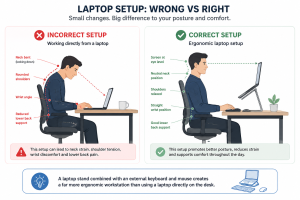
A laptop on its own makes it difficult to achieve an ergonomic setup because you can’t position the screen at eye level while keeping your hands and wrists in a comfortable typing position.
The simplest solution is to:
- Raise the laptop using a laptop stand or monitor stand so the top of the screen sits at about eye level.
- Use an external keyboard and mouse so your arms and wrists remain in a neutral position.
This small adjustment can make a significant difference to your comfort, particularly if you spend several hours working from a laptop each day.
4. Position Your Keyboard & Mouse Correctly
Your keyboard and mouse should allow your arms to rest naturally by your sides without reaching or stretching. Even with the right chair and desk, poor keyboard or mouse placement can contribute to unnecessary strain on your wrists, shoulders and upper back.
How to Position Your Keyboard & Mouse
- Keep them close to your body: Your elbows should stay close to your sides while typing or using the mouse.
- Maintain straight wrists: Avoid bending your wrists up, down or sideways while typing.
- Position the mouse beside the keyboard: This minimises reaching and keeps your arm in a more natural position.
- Relax your shoulders: Your forearms should be supported by the desk or armrests without lifting your shoulders.
Common Keyboard & Mouse Setup Mistakes
- Reaching too far forward for the keyboard or mouse.
- Bending the wrists while typing.
- Using the mouse too far from the keyboard, placing extra strain on the shoulder.
- Resting wrists on hard desk edges for long periods.
If you regularly experience wrist or forearm discomfort, ergonomic accessories such as a split keyboard, vertical mouse or wrist rest may provide additional support. These are best considered after the main workstation has been set up correctly, as accessories can’t compensate for poor chair, desk or monitor positioning.
5. Optimise Your Workspace Lighting
Lighting plays an important role in both visual comfort and productivity. Poor lighting can contribute to eye strain, headaches and screen glare, even if the rest of your workstation is set up correctly.
How to Improve Your Workspace Lighting
- Position your desk side-on to a window where possible to make the most of natural light while reducing glare on your screen.
- Avoid placing a monitor directly in front of or behind a window, as bright light and reflections can make the screen difficult to read.
- Use a task lamp if your workspace doesn’t receive enough natural light or if you regularly work in the evening.
- Adjust your screen brightness to suit the lighting in the room rather than leaving it at the maximum setting all day.
Common Lighting Mistakes
- Working with glare reflecting off the monitor.
- Sitting with a bright window directly behind the screen, making it harder to see.
- Relying on a single overhead light, which can create uneven lighting and shadows.
- Working in a dimly lit room, causing unnecessary eye strain over long periods.
6 Additional Ergonomic Upgrades That Can Improve Your Setup
Once the chair, desk, monitor, keyboard and lighting are positioned correctly, a few targeted upgrades can make your home office more comfortable and practical. These accessories are most useful when they solve a specific problem rather than simply adding more equipment to the desk.
1. Monitor Arms
A monitor arm allows you to adjust the height, distance and angle of your screen more precisely than many standard monitor bases. It can be particularly useful for dual-monitor setups, shared workspaces or sit-stand desks where the screen position may need to change throughout the day.
Monitor arms can also free up desk space and make it easier to keep the main work area organised.
2. Footrests
A footrest can help when your chair is set at the correct height for the desk but your feet do not rest comfortably on the floor. It provides a stable surface for your feet and may reduce pressure beneath the thighs.
This can be especially useful for shorter users or anyone working at a fixed-height desk that cannot be lowered.
3. Anti-Fatigue Mats
An anti-fatigue mat can make standing periods more comfortable when using a sit-stand desk, particularly on hard flooring. It provides a slightly cushioned surface and can encourage small changes in foot position.
However, it should not be used as a reason to stand for long periods. Regularly alternating between sitting, standing and moving remains more important.
4. Document Holders
If you frequently work from printed documents, placing them flat on the desk can lead to repeated downward viewing and neck movement. A document holder positioned near the monitor can keep reference material closer to your normal line of sight.
5. Headsets
A headset can be useful for people who spend significant time on phone or video calls. It helps avoid holding a phone between the shoulder and ear, which can place unnecessary strain on the neck and upper back.
6. Cable Management
Cable trays, clips and sleeves do not directly improve posture, but they can create a safer and less cluttered workspace. Keeping cables away from the leg area also makes it easier to move freely beneath the desk and adjust between sitting and standing.
Not every home office needs every upgrade. Start by identifying the problem you are trying to solve, such as unsupported feet, limited monitor adjustment or discomfort while standing. A small, targeted improvement is usually more valuable than adding several accessories that do not address the way you work.
What Should You Upgrade First?
Start by identifying the main problem in your current setup rather than replacing everything at once.
| If you notice… | Consider upgrading… |
| Poor lower-back support | Your ergonomic chair |
| Raised shoulders or awkward wrist position | Your desk or desk converter |
| Leaning towards the screen | A monitor stand or monitor arm |
| Looking down at a laptop | A laptop stand, keyboard and mouse |
| Feet not resting securely | A footrest |
| Discomfort while standing | An anti-fatigue mat |
| A crowded or restrictive desk | The layout or cable management |
Before buying anything, adjust what you already have. If the problem remains, prioritise the upgrade that will make the biggest difference to how you work each day.
Make one meaningful change at a time, then reassess your setup before adding anything else.
Frequently Asked Questions
1. What is the most important part of an ergonomic home office?
The chair, desk and monitor position have the greatest influence on how comfortably you can work. They should be adjusted together rather than treated as separate purchases.
2. Do I need a sit-stand desk for an ergonomic setup?
No. A fixed desk can still support an ergonomic setup if the chair, keyboard and monitor can be positioned correctly. A sit-stand desk mainly provides more flexibility to change position throughout the day.
3. Is standing better than sitting while working?
Not necessarily. Remaining in either position for too long can become uncomfortable. The main benefit of a sit-stand desk is the ability to alternate between sitting and standing more easily.
4. Can I make a laptop setup ergonomic?
Yes, but working directly from a laptop for long periods is rarely ideal. Raise the screen with a laptop stand and use an external keyboard and mouse so the screen and typing position can be adjusted separately.
5. How high should my monitor be?
The top of the screen should generally sit at or slightly below eye level. Position it directly in front of you and roughly an arm’s length away, then adjust it based on the screen size and your vision.
6. Do I need an expensive ergonomic chair?
Not necessarily. The chair should provide suitable adjustment, support and comfort for the amount of time you spend sitting. A well-fitted mid-range chair may be more useful than an expensive chair that does not suit your body.
7. Are second-hand ergonomic chairs worth buying?
Yes, provided the chair is in good condition and its key adjustments work properly. Our second-hand office chair buying guide explains what to check before purchasing.
Final Thoughts
A good home office should make comfortable working feel natural, not force you to think about posture all day. When your chair, desk, screen and accessories are properly matched to your body and work habits, it becomes easier to move, adjust and stay focused.
There is no need to perfect everything at once. Start with the part of your setup that limits you most, make one useful improvement and build from there.
Kelly’s Office Furniture offers ergonomic chairs, sit-stand desks and practical workspace solutions for home offices of different sizes, working styles and budgets.
 Lounges
 Stools
 Tables
 Ottomans and Accessories
 Glass Boards
 Monitor Arms
 Power and Data Solutions
 Screen Accessories
 Free Standing Screens
 Filing Cabinets
 Lockers
 Mobile Pedestals
 Flip Top Tables
 Meeting Tables